
Step 1 of 6
Watch the result and open the editable slide
This example moves a yellow marker from Toronto to Montreal over a static map. The movement lasts four seconds and the exported video lasts about five seconds, leaving a short hold at the destination. The map stays fixed throughout.
Download the editable one-slide PowerPoint example and save a working copy before changing it. The background map is an image; the yellow marker is a native, editable PowerPoint shape with a custom motion path. The city labels are part of the background image.
Animation and export tested on 24 October 2026 in Microsoft 365 PowerPoint for Windows, Version 2609, Build 20430.20182 Click-to-Run, Current Channel. The source-notes update was reopened and its slide show checked on 25 October 2026 in the same app. Mac, browser and mobile authoring were not tested.
The background uses NASA, Natural Earth, Flagpedia and HYG v3 sources, adapted from Geographical Adventures by Sebastian Lague. The named slide, MP4, poster and map input are shared under CC BY-SA 2.5. Keep the source credits and change notes with copies. They are also in the slide speaker notes and the complete PowerPoint example pack, alongside the editable slide, original MP4, poster and background input.
Step 2 of 6
Prepare the map and marker on one slide
- Use a wide 16:9 slide. Insert a map image you may use and keep its proportions when resizing it.
- Leave enough space for the title and a short explanation. Make the two place names readable before adding movement.
- Insert an oval shape above the starting city. Give it a contrasting fill and outline, then keep it selected.
- If using the supplied file, select the existing yellow marker instead of inserting another one. Its map, title and explanatory line are already arranged.
The supplied map came from our own local map render. The marker follows an approximate straight connection drawn on the slide. Replacing the image with a differently framed map also changes where the city locations sit, so review and redraw the motion path rather than assuming its old endpoints still fit.
Step 3 of 6
Draw and time the movement
- With the marker selected, open Animations and choose Add Animation.
- Scroll to Motion Paths and choose Custom Path. Begin at the marker’s centre, draw toward the destination and double-click at the endpoint to finish.
- Set Start to With Previous, Duration to 04.00 and Delay to 00.00.
- Choose Preview. Check that the marker begins at Toronto and ends at Montreal. Repeat after adjusting either endpoint.
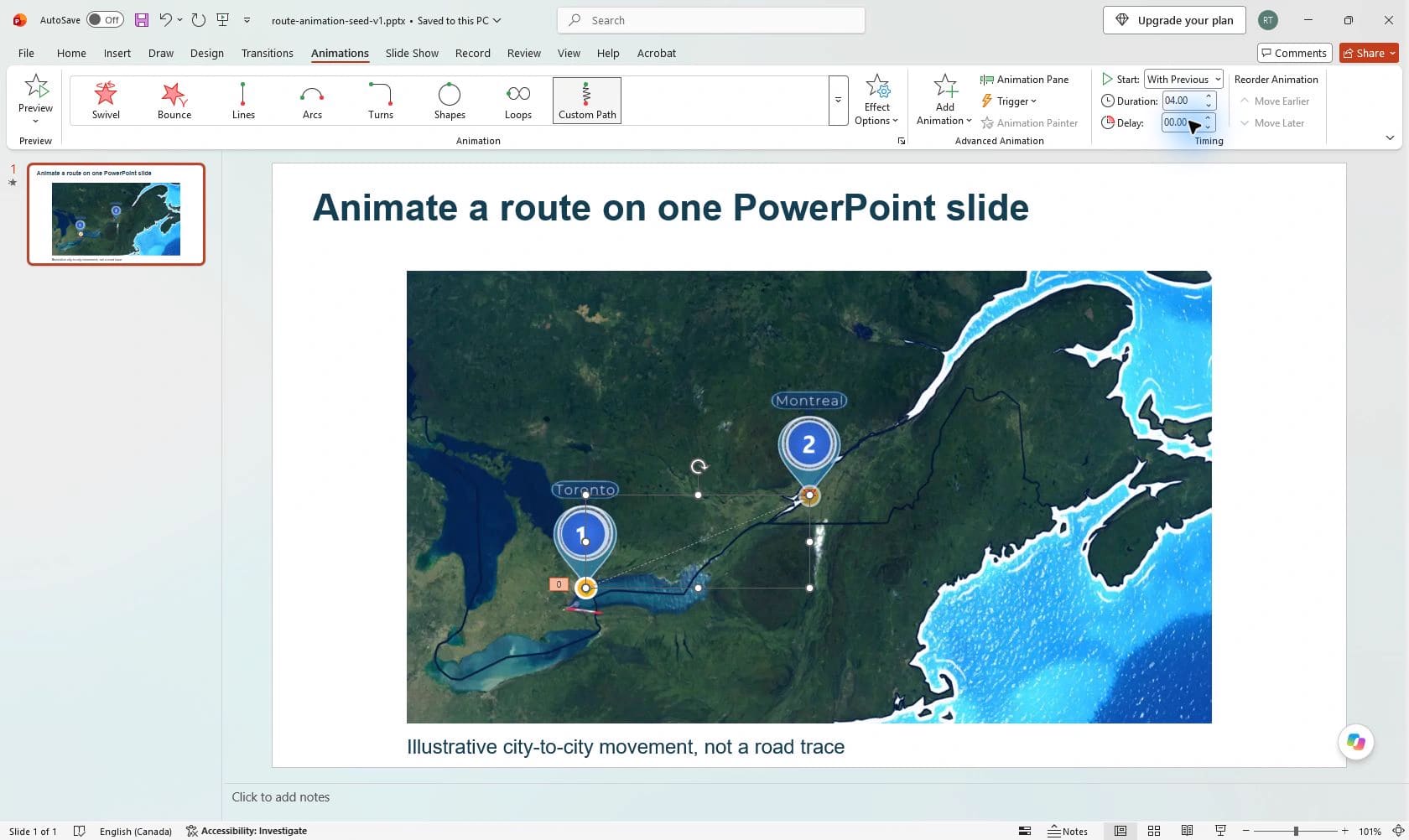
With Previous makes this first effect start automatically when the slide begins. The sample contains one motion effect and keeps PowerPoint’s default easing. Add more effects only after this simple movement works. A motion path moves the marker; it does not automatically draw a visible route line behind it.
Step 4 of 6
Export the slide as a video
- Save the presentation in PowerPoint format so you retain the editable shape and animation.
- Choose File, Export, Create a Video.
- For this example, select Full HD (1080p), Don’t Use Recorded Timings and Narrations, and 05.00 seconds spent on each slide.
- Choose Create Video, select MPEG-4 Video and save the MP4. Wait for export to finish, then play the saved file.
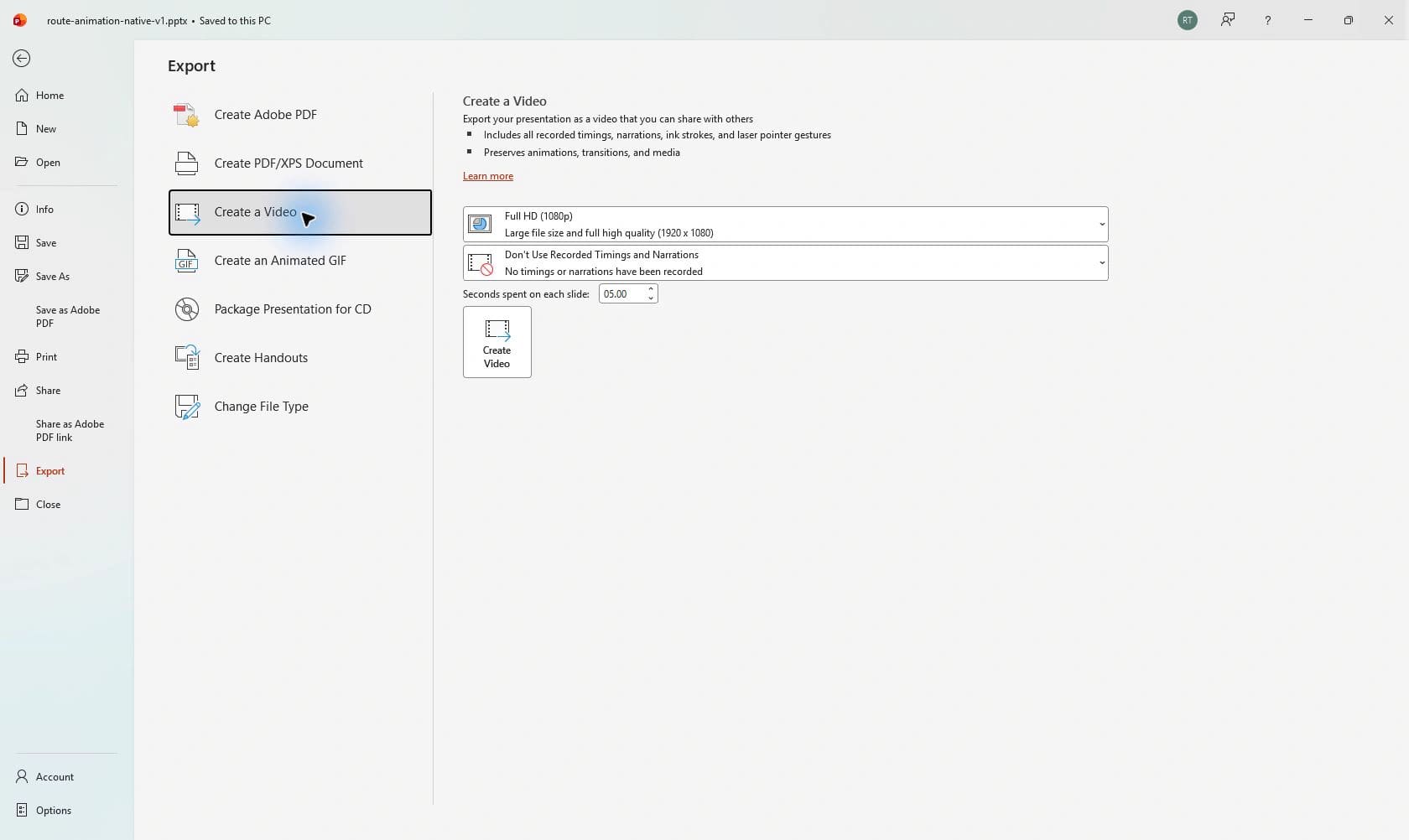
The tested export contains 152 video frames at 1920 × 1080 and lasts approximately 5.02 seconds. Small frame-boundary differences explain why a five-second setting need not produce exactly 5.000 seconds. The marker reaches Montreal before the end. Check your own complete export whenever you change animation length or add slides.
Microsoft documents the Create a Video workflow and motion-path controls. These are reference instructions; the file and screenshots above come from the separate desktop test.
Step 5 of 6
Choose a platform that supports the task
Use the Windows desktop workflow for this sample. Microsoft’s platform comparison describes web animation editing as limited, and its mobile animation guidance says mobile apps cannot add motion paths. Browser or phone playback of an MP4 is a different task from authoring the animation. These references were checked on 24 October 2026.
If a command is absent, check the app and version before looking for an identically named control elsewhere. This article does not promise that a free web account supplies the desktop authoring and video-export workflow.
Step 6 of 6
Decide whether this simple effect fits the story
One slide works for a short geographic introduction, classroom explanation or connection between two places. It does not calculate roads, import GPS tracks or prove a journey happened. Check spelling, map rights, endpoint alignment and legibility in the exported frame.
For several stops with geographic camera movement, use the tested route-map tutorial. The animated map tool comparison helps choose between a slide animation and a dedicated map workflow.
Finish line
Route complete: 6 steps
Need to check something again? Jump straight back to any stop.
Helpful answers
Frequently asked questions
Does the motion path draw the route line?
No. It moves the selected shape. A visible line must be a separate object or effect; the supplied example uses only a moving marker.
Can I change the cities in the downloaded slide?
The city labels are embedded in the map image. Replace the background with a suitable map and then realign or redraw the marker’s path.
Was the downloadable file tested in PowerPoint?
Yes. The final slide opened and its animation played in Microsoft 365 PowerPoint for Windows Version 2609. The MP4 was exported through PowerPoint and checked separately. Other authoring platforms were not tested.