Step 1 of 10
Introduction
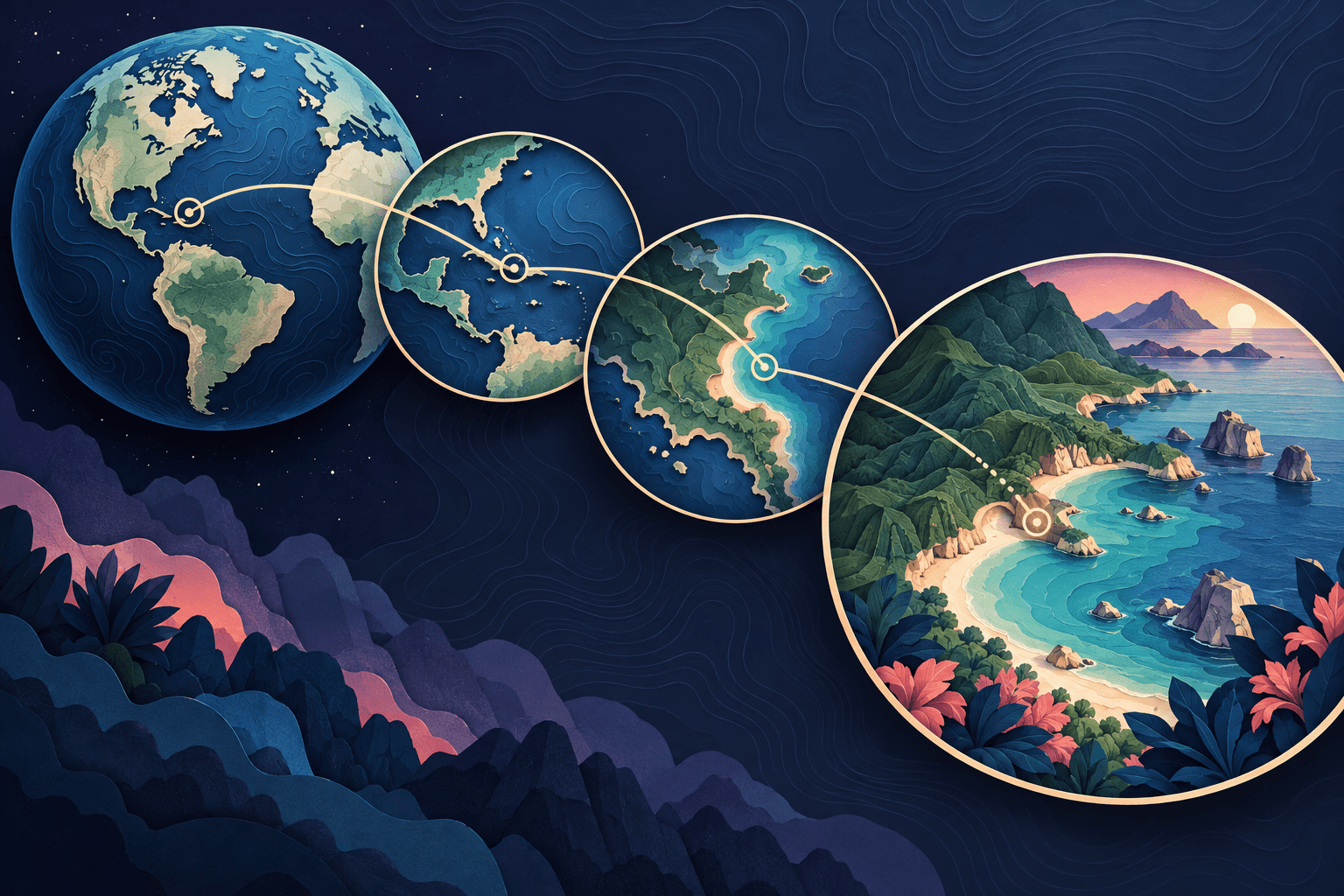
Map zoom transitions connect a geographic overview with the footage filmed at a destination. A good transition answers “where are we going?” and then lets the real scene take over. It does not need to look like an impossible camera dive from space to a café table.
Plan the map shot and the live footage together. Match a clear visual detail, leave time to recognize the destination, and cut before the movement becomes more important than the story.
To build the location sequence, explore AlbumMap's map-video workflow. The editing recipes below can be completed in a separate video editor when you need more control over the cut between exported scenes.
Step 2 of 10
Start with the footage, not the transition effect
Choose the first shot that viewers will see after the map. A wide view often gives you a useful bridge because it still explains the place. A close-up can work, but it may need a destination label or a brief establishing shot first.
Look for a shape, direction, or subject you can echo in the map frame. A coastline might run diagonally through both scenes. A destination marker might sit near the centre before a landmark appears in a similar position. A camera moving gently right can cut to footage with a compatible direction.
The two images do not need to be identical. They need enough visual logic that the audience does not feel lost at the cut.
Step 3 of 10
Inspect a real cut in the finished teaching movie
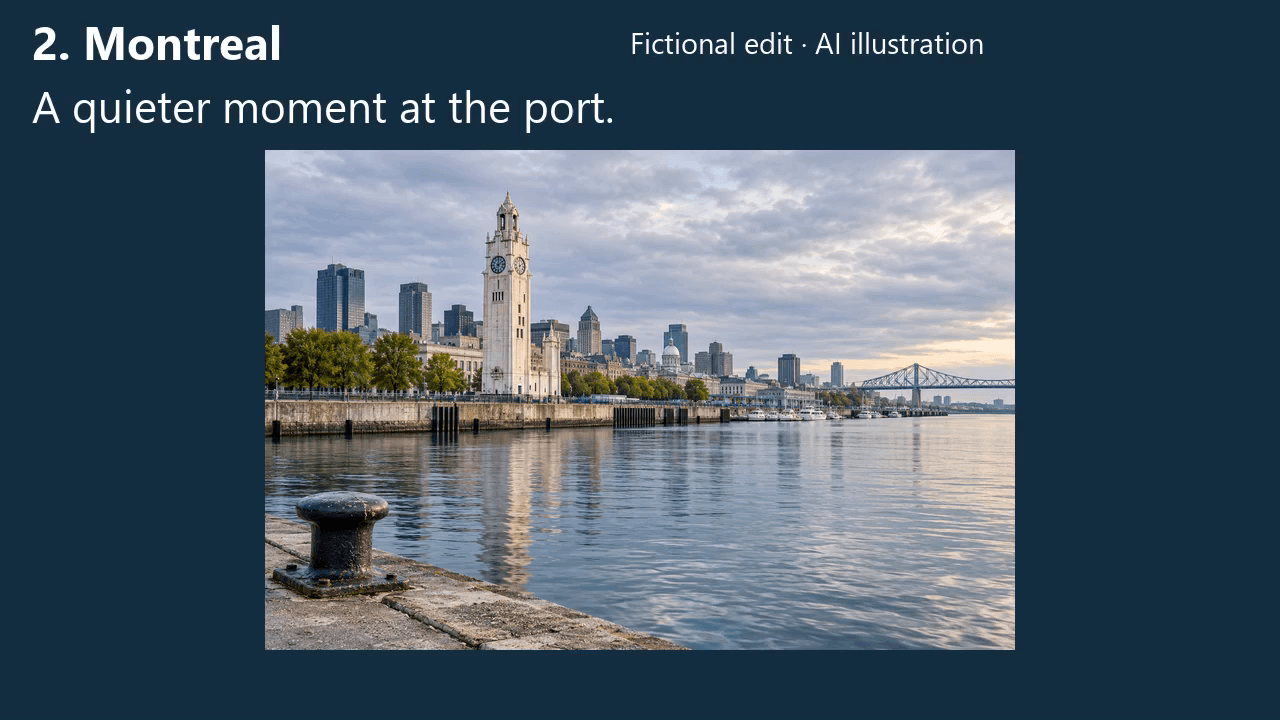
The existing thirty-second travel demonstration contains a clean cut at exactly 12 seconds. At 24 fps, frame 287 is the last Montreal map frame (11.958 seconds), and frame 288 is the first arrival-image frame (12.000 seconds). The two PNGs below are decoded directly from that MP4. The arrival picture is an AI-generated illustration, not travel footage or evidence that a camera visited the place.
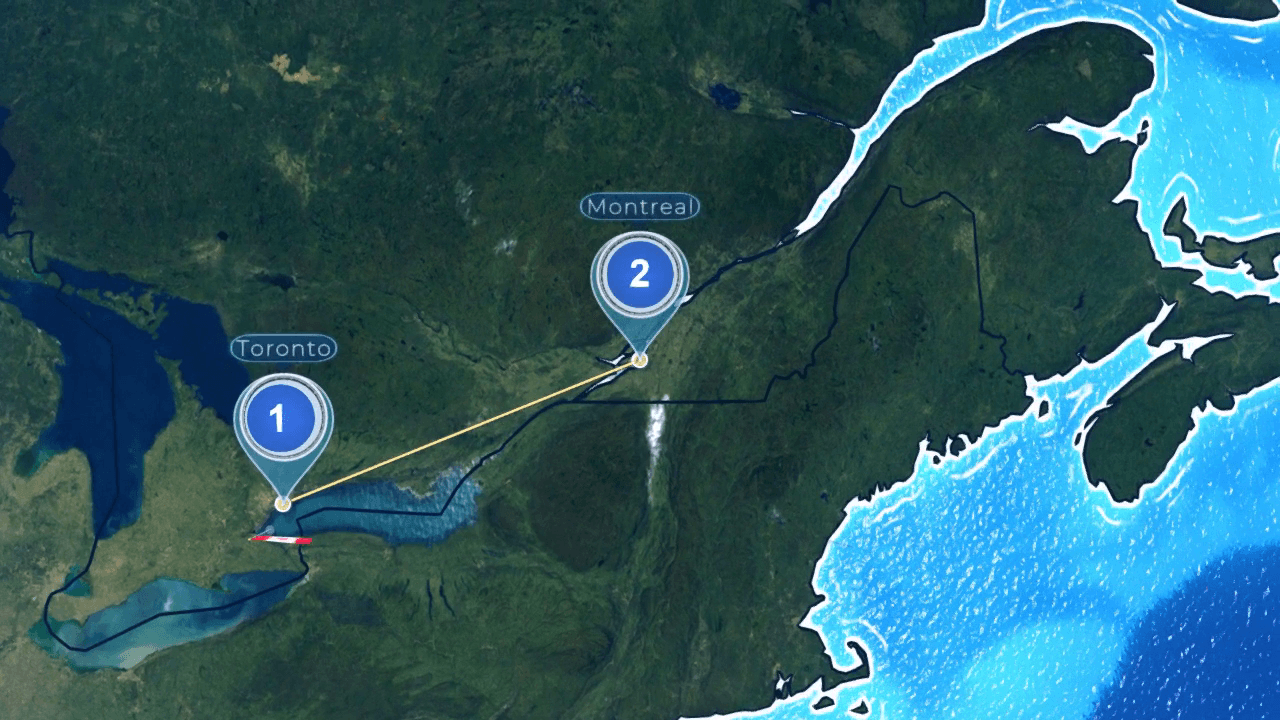
| Interval around the cut | What actually happens |
|---|---|
| 0:07–0:10 | Map moves from Toronto toward Montreal. |
| 0:10–0:12 | The Montreal map view holds for recognition. |
| 0:12–0:17 | The arrival illustration holds for five seconds, with its city and fictional memory caption. |
There is no dissolve, fake satellite-to-street dive or added whoosh. The map settles before the picture appears. For your own footage, replace the illustration with a permitted establishing shot, then judge whether its direction and subject make the cut understandable. The sample demonstrates the edit boundary; it cannot validate the real scene’s geography or camera position.
Download the adjacent-frame record and retain the complete movie’s source credits and CC BY-SA 2.5 change notes with reused frames. These stills are unmodified extractions from that named teaching film. For its complete source pack and all three city chapters, use the full travel-video example.
Step 4 of 10
Recipe 1: Overview, approach, clean cut
This is a useful first choice for a travel chapter.
Begin with a map wide enough to establish the region. Move toward the destination, let the camera settle, and cut to the selected footage. Introduce a short destination label where it can be read without competing with motion.
Use this original timing plan as a starting point:
| Time | Scene | Purpose |
|---|---|---|
| 0–1.5 seconds | Regional map overview | Establish the location |
| 1.5–4 seconds | Controlled approach | Connect the overview to the destination |
| 4–5 seconds | Settled destination view | Allow recognition |
| 5–8 seconds | Original wide shot | Move from geography into the experience |
The pause before the cut is deliberate. It lets the map finish its job. When the approach is still racing at the exact moment a calm landscape appears, the edit can feel abrupt rather than energetic.
Google Earth Studio's Quick Start projects provide geographic camera-move options. Check the relevant imagery permissions before choosing that workflow; our Google Earth zoom guide explains the distinction.
Step 5 of 10
Recipe 2: Match the shape across the cut
Choose this when the destination has a recognizable composition: a curve of coast, a river bend, an open plaza, or a strong road direction.
Arrange the end of the map shot so the key shape occupies a similar part of the frame as it does in your footage. Keep the destination marker from covering that shape. Then cut directly between the two images and judge the result without extra effects.
You can add a restrained blend later, but first make the composition work as a clean cut. A long dissolve cannot repair two frames that give the viewer conflicting directions.
For a fictional coastal stop, the map might end with the shore running from lower left to upper right. The next shot can echo that diagonal through the beach or waterline. The audience moves into the scene with one visual relationship preserved.
This is an editorial match, not a claim that the two frames show the same camera position or moment.
Step 6 of 10
Recipe 3: Pull back, travel, arrive
Use this for a change between two destinations rather than an opening introduction.
End the first scene with a useful location cue. Cut or transition to its position on the map, pull back enough to show the next destination, reveal the connection, and arrive before the next footage begins.
Keep the middle section short enough that the video does not become mostly transit. The point is to explain why the next scene happens somewhere else.
For nearby stops, a small local move may be sufficient. Reserve a world-scale overview for a change that genuinely benefits from that scale. Repeatedly returning to a globe between neighbouring places can make the geography harder, not easier, to follow.
For a multi-stop story, keep one consistent rule: the map establishes a chapter, and the footage tells that chapter's story.
Step 7 of 10
Assemble the scenes in a video editor
Place the exported map scene and your destination footage on the timeline. Start with a straight cut. Trim both clips until the sequence feels intentional, then consider whether any transition effect is still needed.
CapCut's official zoom-editing guide discusses zoom workflows and keyframed editing. Whichever editor you use, distinguish between a real map-camera move and enlarging a finished flat image. They may look similar in a small preview but offer different amounts of visual information.
Do not keep enlarging an already rendered map just to fill a transition. Reframe or render the map at the intended composition when the existing clip does not provide enough detail.
Keep the project's dimensions and timing consistent with your chosen output. Review the final exported file rather than assuming the timeline preview is sufficient.
Step 8 of 10
Use sound as a bridge, not a disguise
A simple sound connection can support an already clear visual edit. Let the atmosphere from the destination begin slightly before the footage appears, or let a continuous music phrase carry across the cut.
Do not attach a loud impact or whoosh to every map movement. Repetition can make small location changes feel more dramatic than the story requires.
Watch the sequence muted as a separate test. The destination should still make sense. Then listen without watching and notice whether the audio transition feels abrupt. Adjust each part for clarity rather than asking one to hide problems in the other.
Step 9 of 10
Fix the most common map-transition problems
The destination appears too briefly. Hold the final map view or simplify the label. The viewer should not need to pause the video to discover where the chapter takes place.
The map and footage feel unrelated. Match scale, direction, or a recognizable feature. Try a wider first footage shot before adding an effect.
The map zoom looks blurry. Inspect whether you are enlarging a rendered image too far. Rebuild the shot at the needed framing instead of continuing to scale it up.
The transition dominates the video. Shorten the map section and give more time to the footage. A map can provide orientation without narrating every metre of the journey.
The camera movement feels uncomfortable. Reduce the speed, tilt, or rotation. Test a calmer cut before assuming you need more animation.
Step 10 of 10
Make the transition explain the next scene
Choose the destination footage, build the map shot around it, and test the clean cut before adding effects. For a route that connects your clips and locations, start a map video in AlbumMap.
Finish line
Route complete: 10 steps
Need to check something again? Jump straight back to any stop.
- 1Introduction
- 2Start with the footage, not the transition effect
- 3Inspect a real cut in the finished teaching movie
- 4Recipe 1: Overview, approach, clean cut
- 5Recipe 2: Match the shape across the cut
- 6Recipe 3: Pull back, travel, arrive
- 7Assemble the scenes in a video editor
- 8Use sound as a bridge, not a disguise
- 9Fix the most common map-transition problems
- 10Make the transition explain the next scene
Helpful answers
Frequently asked questions
Do I need a seamless zoom all the way into real footage?
No. A deliberate cut can be clearer and more honest than pretending that map imagery and a handheld shot form one continuous camera journey.
Can I use a still map instead of a rendered camera move?
Yes, for a simple editorial effect. Keep the enlargement modest and check image quality. A static overview followed by a clean cut may provide all the orientation the scene needs.
Should every destination have the same transition?
Keep the visual language consistent, but do not force the same movement onto every location. A local move, a full overview, and a direct cut can each serve different moments.
Can I make the map section loop?
A loop needs separate planning for the return to the opening frame. See how to create a seamless looping map animation rather than simply repeating a one-way zoom.