Step 1 of 6
Check access and intended use before building the shot
Google’s Earth Studio FAQ requires a Google account and currently specifies Chrome. Account access and any requested authorization must be completed by the account holder. The camera plan below has not yet been built or rendered in an authorized Earth Studio session.
Read the Google geographic-content guidelines before choosing the project. Google prohibits Earth and Earth Studio imagery in promotional films, ads and commercials, including documentary-style material used to promote a business or organization. Attribution does not remove that restriction.
The guidelines separately describe primarily educational, instructional, recreational and entertainment online video, including monetized work, subject to their other terms. Check your specific use against the current guidelines rather than treating every travel or website video as eligible.
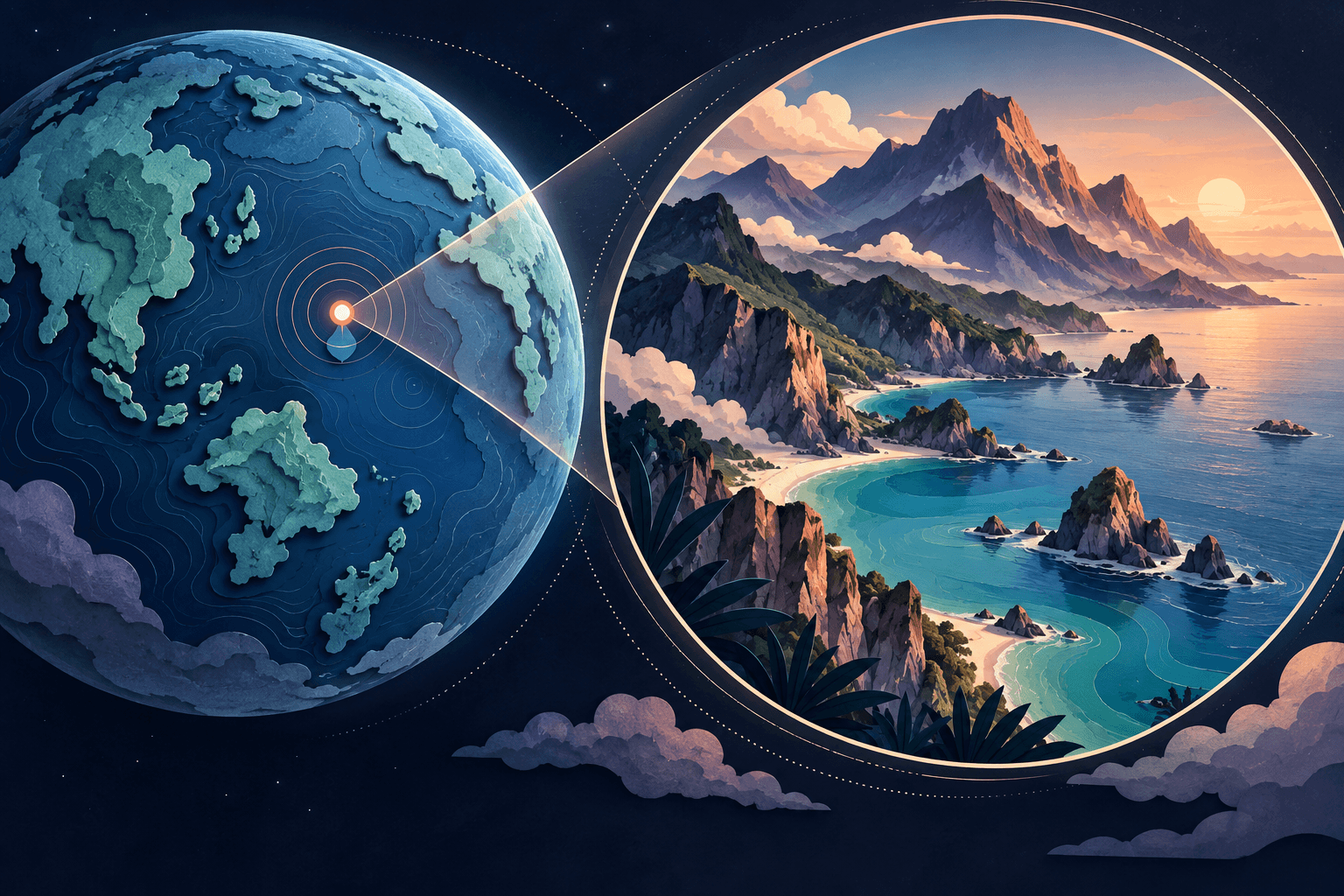
This example is planned as a plain geography lesson about the change from a regional view to a central-city view. It has no product logo, sales message or promotional ending. No Google imagery sample is supplied or claimed to have been rendered here.
Step 2 of 6
Use one destination and a modest change in scale
Google’s Quick Start documentation describes File → New → Quick Start → Zoom-To. The first and last framing steps establish the camera views, and the resulting project remains editable.
For the first attempt, keep latitude and longitude fixed and change altitude. A regional opening can establish context without a globe spin. Let the final view remain visible before cutting to another scene.
The values below are chosen planning inputs for an approximate central-London view. They are not readings captured from the current camera interface, navigation coordinates or a verified final composition. Check the selected place and framing in the authorized project before rendering.
Step 3 of 6
An explicit eight-second camera brief
| Project or camera property | Chosen planning value |
|---|---|
| Output | 1920 × 1080; 24 fps; 8 seconds, or 192 frames |
| Camera latitude / longitude | 51.5074, −0.1278 as an approximate instructional view target |
| Altitude | 250,000 m in the opening; 12,000 m at the arrival, using the displayed attribute values |
| Camera rotation | Pan 0° and tilt 0° for this first top-down attempt; no orbit |
| Field of View | 20° as a chosen constant value; no animated focal-length change |
| Scene choices | No added Camera Target or Time of Day animation; record the cloud state shown by the actual project |
| Frame / time | Camera state |
|---|---|
| 0 and 48 · 0 and 2 seconds | Same opening position and altitude, holding the regional view |
| 144 · 6 seconds | Same latitude/longitude, arrival altitude; preserve the chosen rotation and field of view |
| 191 · last displayed frame | Repeat the arrival state so the view holds through the end of the eight-second range |
This gives two seconds of opening, four seconds of approach and two seconds allocated to the arrival. Frames 0–191 make the 192-frame range. The actual imagery, camera curve and useful framing still need to be checked; do not call the planned numbers measured performance or an exact visual match.
Step 4 of 6
Save the intended states as keyframes
Google’s keyframing guide explains that changing the viewport alone does not save a camera state. Use the keyframe controls at the intended playhead position, or enter an attribute value directly and confirm the resulting keyframe.
- Set the project duration, frame rate and dimensions, then identify the chosen destination.
- Establish the opening framing and key its position/rotation at the start and opening-hold boundary.
- Move to the arrival frame, enter or frame the final camera state and key it.
- Repeat the final state at the last displayed frame. Inspect the position and rotation tracks for unintended movement.
- Preview the whole shot and compare the first, arrival and last frames. Simplify the movement if the destination is hard to recognize.
For a larger altitude change, review Google’s logarithmic-altitude guidance. Quick Starts can enable adaptation when needed. Record the actual state and curve in your project; do not assume a two-keyframe move has constant perceived speed.
Step 5 of 6
Render a test and keep the on-screen attribution
Google’s rendering instructions describe local image-sequence rendering and a separate cloud option. Use the methods actually available to the account. A local sequence must be imported or encoded at the project’s frame rate to become a video; keep Chrome and the render tab active as required by the local workflow.
Its attribution instructions require Google Earth and applicable imagery-provider credits while the imagery is visible. The renderer supplies frame-specific attribution, and its placement can be adjusted in render settings. Keep the exact credits readable after titles, resizing and final cropping.
For this planned test, verify 192 complete frames and an eight-second encoded result at 24 fps. Play the actual file, including the first and last frames, and check the credits at the smallest intended viewing size. These outputs and checks remain unverified until the native project can be run.
Step 6 of 6
Record the result before expanding the camera move
A polished camera motion is useful only if viewers understand where it lands. Keep the destination view recognizable and the following scene connected to it. An instructional plan becomes a demonstrated tutorial only after its real project and output are checked.
This camera brief remains a planning example until its native Earth Studio render has been checked. For a completed moving-map exercise now, use the tested PowerPoint example or the rendered route-animation tutorial. Those outputs demonstrate their own tools; they do not verify an Earth Studio export or its permitted use.
Finish line
Route complete: 6 steps
Need to check something again? Jump straight back to any stop.
Helpful answers
Frequently asked questions
Is the eight-second zoom a tested Earth Studio export?
No. It is an explicit production brief based on Google’s documentation. Authorized account access, actual camera inspection and the finished native render remain unverified.
Can this imagery be used in a product advertisement?
Google’s geographic-content guidelines prohibit Earth and Earth Studio imagery in promotional films, ads and commercials. Review the current terms for the specific intended use.
Can the credits move to the final end card?
Do not substitute an end card for the attribution required while the imagery appears. Keep the renderer’s Google Earth and applicable provider credits visible and readable.
Is a zoom the same as a route animation?
A zoom changes the camera’s view of a place. A route animation explains movement between places. Choose the shot around what the viewer needs to understand.