Scene 01Take 1●
Solve the timing problem before adding more photographs
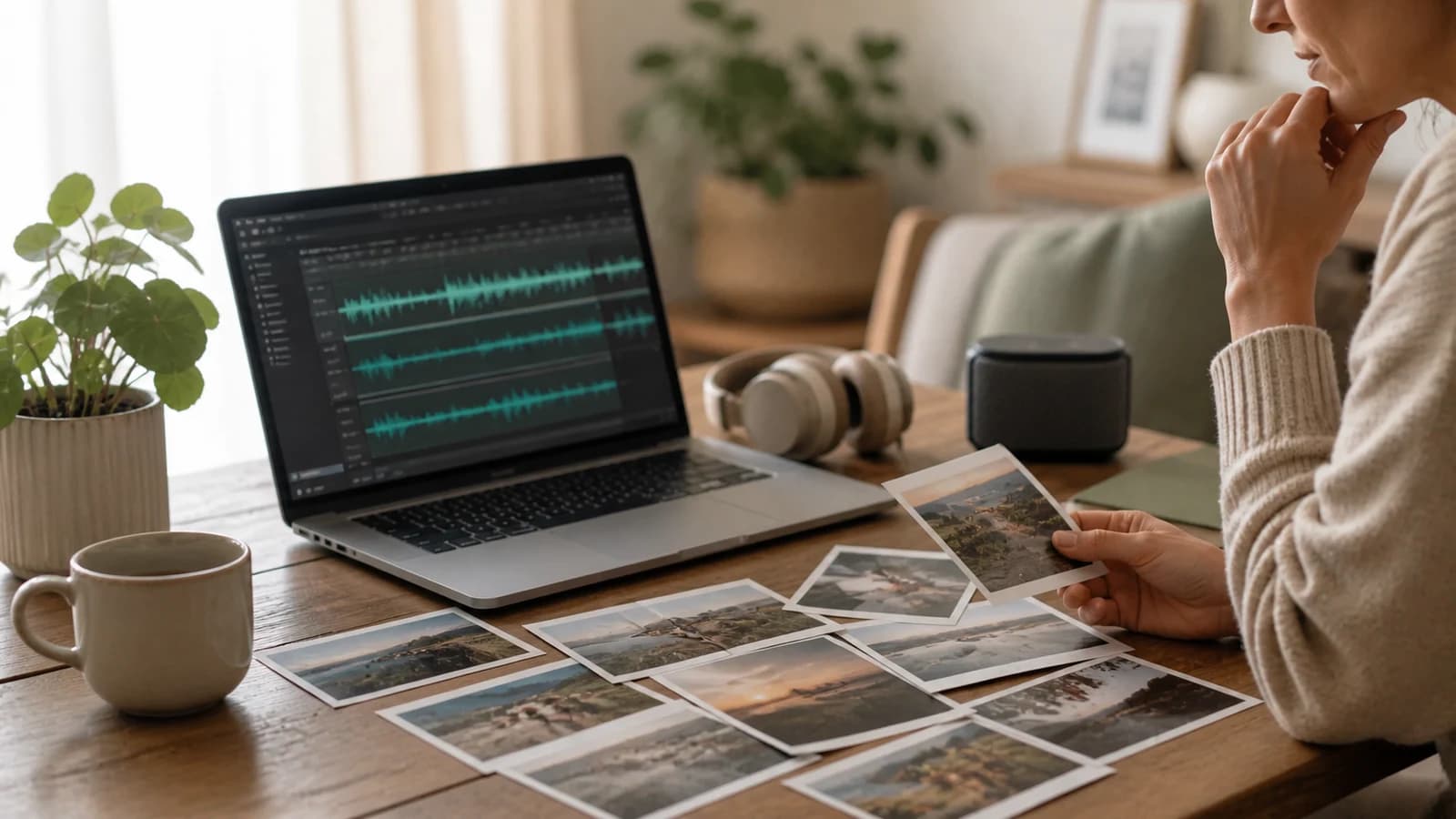
A song can feel right and still make a video awkward: a message arrives during the loudest passage, a cut interrupts a phrase, or the soundtrack stops before the closing image. Set the story length and protect the important speech first. Then choose a usable excerpt and arrange the photographs around it.
This graduation application uses four AI-generated pictures, one synthetic message and an excerpt of “Carefree.” It demonstrates an editing method, not a family’s reaction or a product’s automatic music-matching feature.
Scene 02Take 1●
Choose a track you can use in this particular video
The demonstrable track used here is “Carefree” by Kevin MacLeod (incompetech.com), licensed under CC BY 4.0. Composer’s track page and complete credit and edit notes. The excerpts use level changes and fades; the landscape version also mixes synthetic speech. No composer endorsement is implied.
The composer’s current track record identifies it as ISRC USUAN1400037 and lists 96 beats per minute. Its page and attribution wording were checked on 24 October 2026. The sample’s credits identify the title, composer, license and changes; the input pack keeps the record with the audio excerpt.
Download the input pack to compare the un-ducked 40-second excerpt with the finished mix. Its music file has been excerpted and re-encoded; it has no speech or volume duck. The complete source recording remains available through the composer’s track page.
Choose the mood from the story and recipient. A bright instrumental may suit this fictional graduation example but would change the tone of a quiet remembrance. Check the license for your own track and destination; access to a song in one app is not by itself evidence that a separately exported file carries the same permission.
Scene 03Take 1●
Mark phrases by listening, then use the beat grid as a guide
Listen for where a musical thought begins, changes and resolves. Mark those points before making the pictures fit. A waveform can reveal attacks and silences, but amplitude alone does not tell you which moment is the beginning of a phrase.
At the credited 96 BPM, a steady beat lasts 60 ÷ 96 = 0.625 seconds. If you count four beats to a bar, that gives 2.5 seconds per bar, five seconds for two bars and ten seconds for four bars. This is a nominal planning grid. It does not establish the recording’s first downbeat, meter or every phrase boundary.
| Editing choice | Sample timing | What it proves |
|---|---|---|
| Four picture chapters | 0:05–0:25, five seconds each | An explicit picture budget, not verified phrase detection |
| Protected message window | 0:25–0:35 | Speech has its own ten seconds |
| Music return | By 0:35 | The soundtrack returns after the spoken sentence |
| Ending fade | 0:37–0:40 | The excerpt ends deliberately rather than stopping abruptly |
The sample keeps simple five-second holds for teaching clarity; it does not claim every cut lands on a musical phrase. In a real edit, move a cut toward a meaningful phrase when that also gives the photograph enough reading time. Do not sacrifice an important face or sentence to an arbitrary beat.
Scene 04Take 1●
Lower the music around speech rather than raising everything
In this mix the music’s linear gain is 0.18 outside the message and 0.045 beneath it. The fourfold reduction is about 12 dB relative to the music’s normal level. A half-second ramp leads into the lower level, and the music returns by 35 seconds. These are the demonstrated settings, not universal targets for every recording.
The synthetic message starts at 25 seconds and lasts about 9.27 seconds inside its ten-second window. Its separate input gain is 0.85. Different voices, microphones and songs will need different adjustments. Preserve intelligibility and listen for clipping or sudden changes after export.
- Place the cleanest message take at its intended position.
- Reduce the music while the speaker talks. Add short ramps so the change does not feel like a switch.
- Check the beginning and end of the sentence as well as its loudest word.
- Watch with captions enabled and listen again to the exported file. Do not judge only the editor’s timeline.
The caption example explains the separate text track. This sample’s caption identifies its narrator as synthetic.
Scene 05Take 1●
Apply the method to graduation without forcing a standard song
Ask whether the audience is one graduate, a class or a room of guests. An individual keepsake can give one person’s words room to breathe; a class presentation needs a fair representation plan and the school’s playback conditions. Avoid choosing music so early that the message has to be shortened into an unnatural sentence.
For the fictional Maya project, the sequence is study, practice, the milestone and thanks. The message names a concrete quality rather than promising a particular career or achievement. Replace the teaching images and script with approved material before presenting a real person’s story.
Use the graduation slideshow workflow for venue checks, and the complete slideshow project for the full picture and title timeline.
Scene 06Take 1●
Review the export and keep its credit attached
Play the first note, the message, the music return and the ending in the actual MP4. Check the full file on the intended speaker or headphones at a comfortable volume. A non-silent audio stream and a correct timeline are useful technical checks, but they do not establish that every listener can understand every word.
The local sample is a 1280 × 720, 24-fps H.264/AAC export assembled in FFmpeg 8.1.1. It contains 960 video frames and includes an end credit. Keep that credit, the source link and the edit notes with any version you share. A social platform can still have its own publication and content-identification process.
End card
That’s a wrap
- Solve the timing problem before adding more photographs
- Choose a track you can use in this particular video
- Mark phrases by listening, then use the beat grid as a guide
- Lower the music around speech rather than raising everything
- Apply the method to graduation without forcing a standard song
- Review the export and keep its credit attached
Helpful answers
Frequently asked questions
Should every photograph change on a beat?
No. Use the music to support the story. A complex picture or a spoken sentence can need more time than the next beat provides.
Does 96 BPM prove the phrase boundaries?
It gives a nominal beat interval of 0.625 seconds. You still need to identify the actual musical structure and starting offset by listening.
Are the sample’s volume settings suitable for every message?
They demonstrate this mix only. Adjust against your own source recordings and review the actual export for speech clarity, abrupt level changes and clipping.