Step 1 of 7
Use one route and make every stop readable
To animate a route, choose the stops in story order, set the movement between each pair, leave time to recognize each place, and review the finished video. Start with a small route before adding a long list of destinations. This guide uses Toronto → Montreal → Quebec City throughout, so the planning and timing stay connected.
The sample uses approximate city centers and illustrative air arcs. It is a visual story, not a checked driving route, airline schedule or navigation aid. If you need a specific road, trail or other traveled path, establish that geometry separately rather than assuming a line between cities follows it.
Step 2 of 7
Watch the three-stop result
The numbered local route sample uses renderer sources from NASA, Natural Earth, Flagpedia and HYG v3 (David Nash / Astronomy Nexus), adapted from Geographical Adventures by Sebastian Lague. This named local movie and its poster are shared under CC BY-SA 2.5. Keep the map-source credits and change notes with copies. The record identifies any separate factual-data credits; it does not license other complete videos or hosted exports.
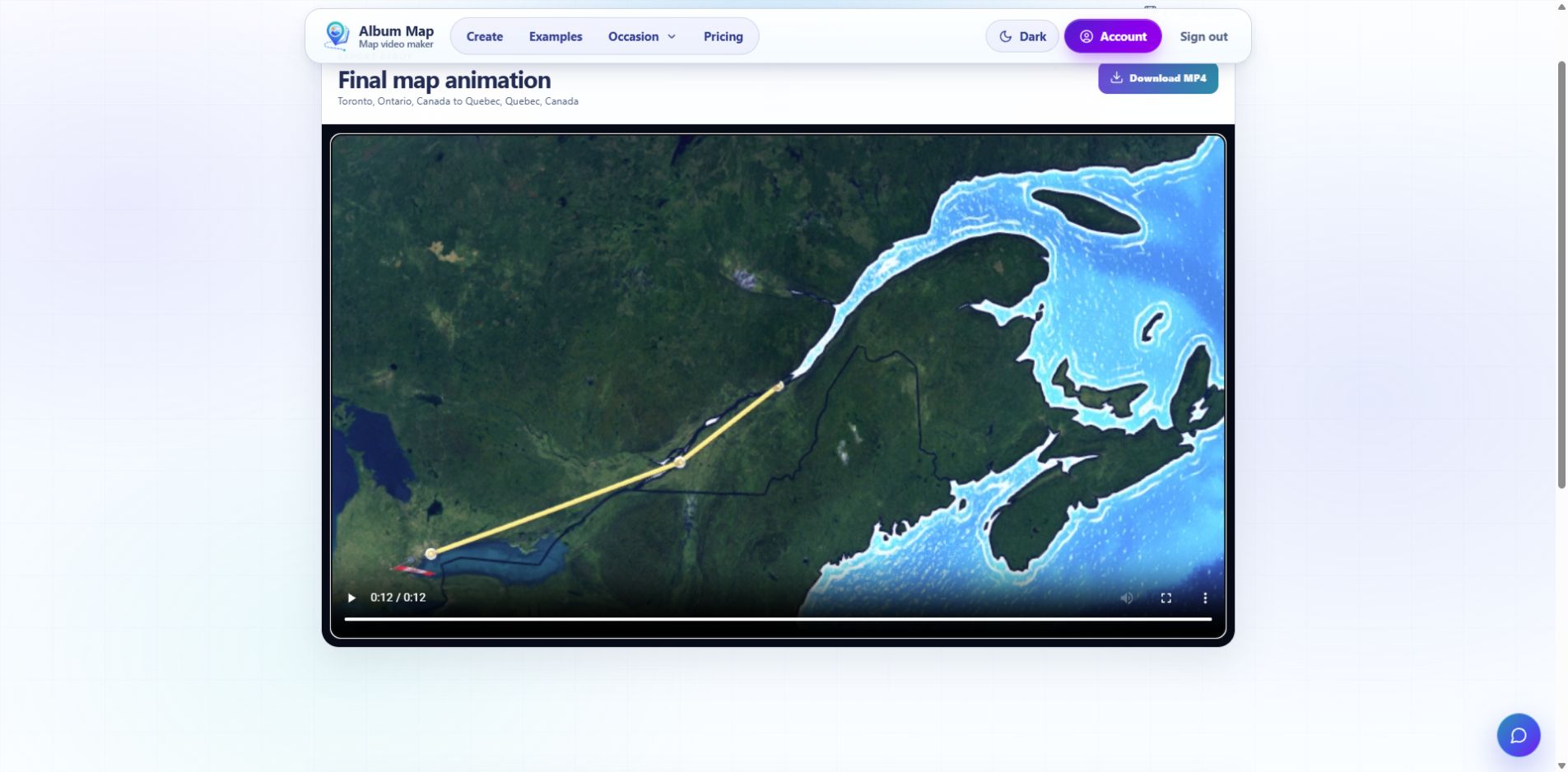
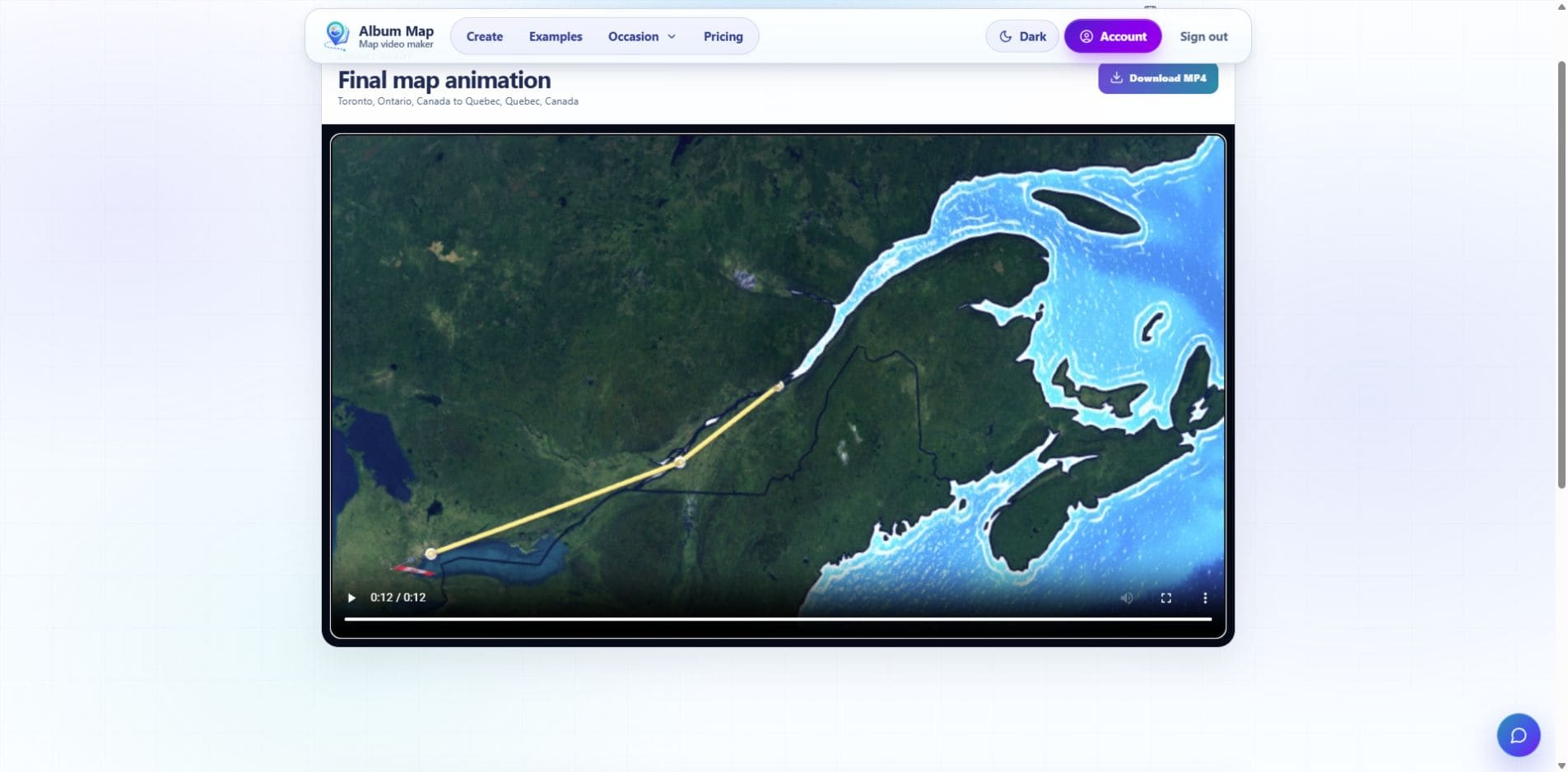
Two versions were checked on 24 October 2026. The embedded, numbered sample was rendered locally at 720p. A separate website project used the same three-stop timing without attached media: it saved automatically, completed its preview and final export, and played through all twelve seconds in the private viewer at 854 × 480 and 24 fps. The screenshot below shows that website result. The numbered labels belong to the local demonstration, not the bare website project.
The existing bare website export was checked again on 26 October 2026: the player reached its 12-second end at 854 × 480, reported readyState 4 and no media error. The attempted browser download did not produce a verified local file. Downloaded-file playback and a separate media-attached website export remain unverified; neither is demonstrated by the local numbered sample.
Step 3 of 7
Write down the stop order and time budget
| Order | Place | Pause | Travel to next stop |
|---|---|---|---|
| 1 | Toronto | 2 seconds | 3 seconds to Montreal |
| 2 | Montreal | 2 seconds | 3 seconds to Quebec City |
| 3 | Quebec City | 2 seconds | No onward leg |
Three two-second pauses plus two three-second journeys total twelve seconds when no separate opening, ending or media scenes are added. The final stop has no outgoing journey. For a real trip, verify the order against your own records; the order of an upload folder is not necessarily the order of travel.
Choose a different structure only when the story needs it: one-way for a journey, a loop for a return to the start, or separate routes for people meeting at one event. Do not combine all three structures in a short demonstration.
Step 4 of 7
Choose a frame, then select actual locations
Open Map Animator and choose the screen shape in Step 1. The current interface asks you to sign in to continue to Step 2 and save the project. Select each place from the search results in the route editor; typing a place name alone is not the same as confirming the selected location.
Check that similarly named cities are in the intended country or region. Put the three stops in the listed order before adjusting the style. An exact private address is unnecessary for this example. Use the route list to verify the order again after adding or rearranging stops.
Step 5 of 7
Set travel, pauses and a clear camera
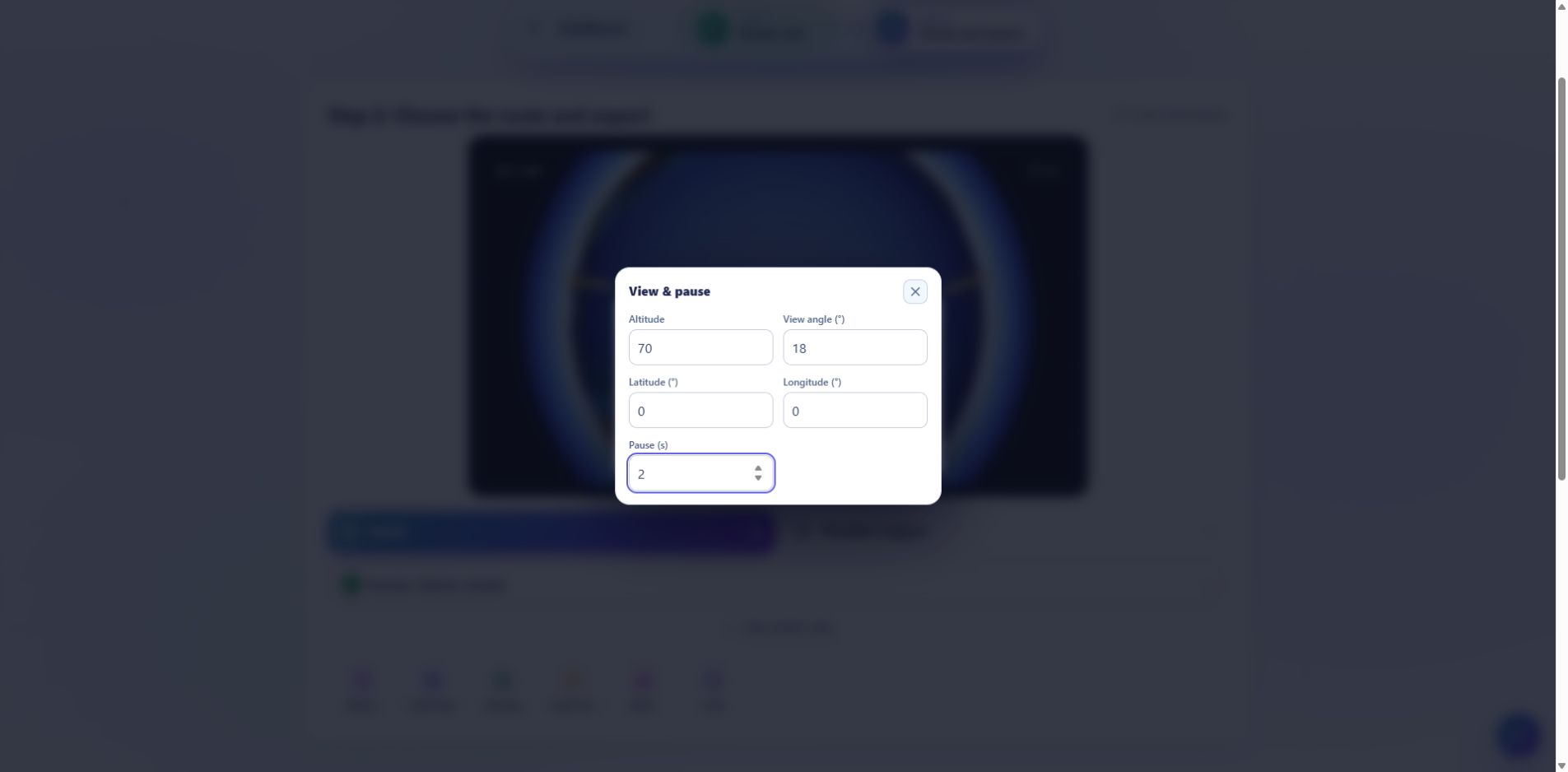
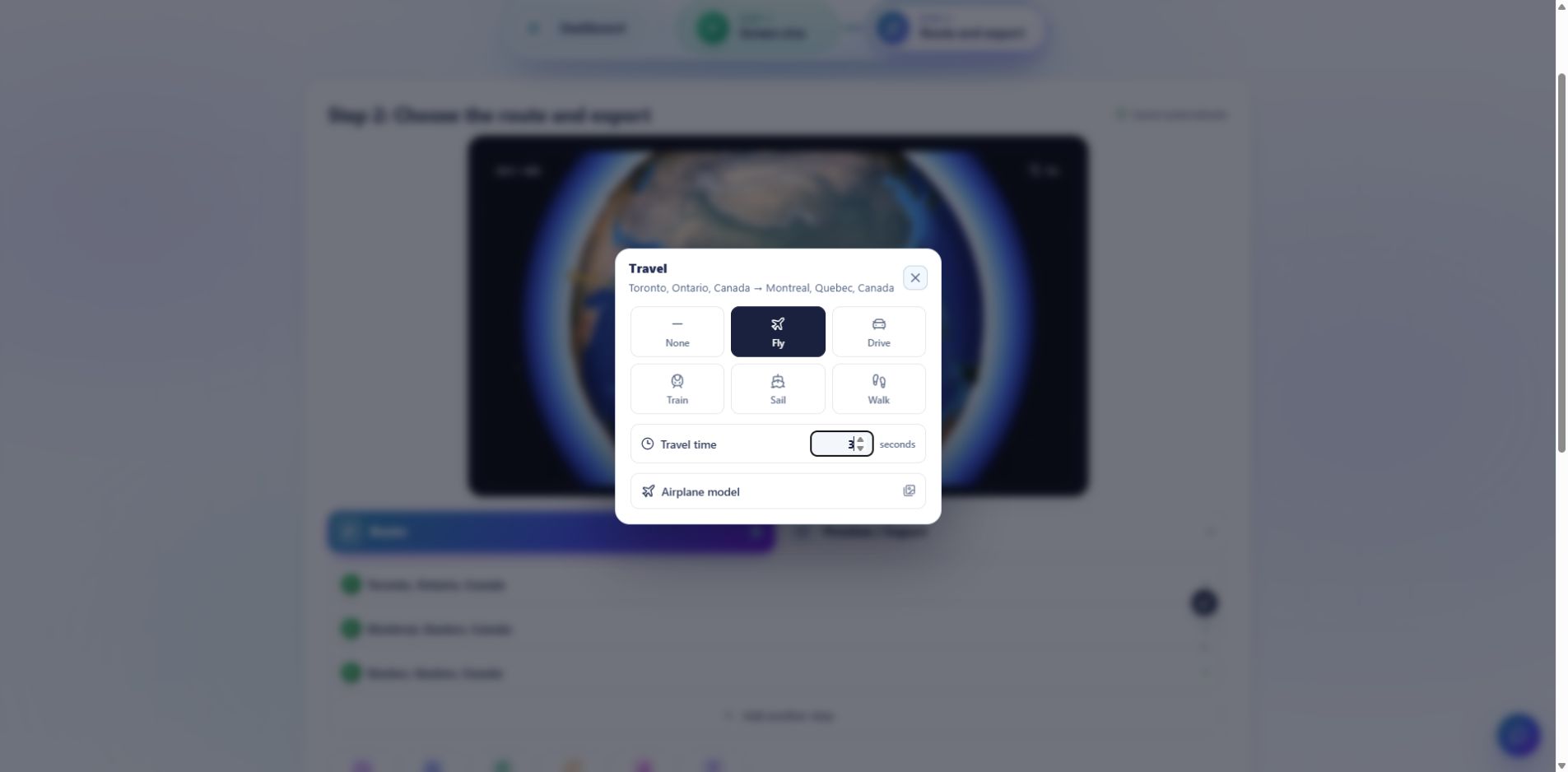
Between adjacent stops, open Travel, select the intended transport and set Travel time. For this illustration, use Fly for both legs and three seconds per leg. Open a stop’s View & pause settings for its pause and camera values. The local sample uses an overhead view, Altitude 70, View angle 18°, latitude camera angle 0° and longitude camera angle 0°. These are rendering controls, not a claim about the vehicle’s real altitude.
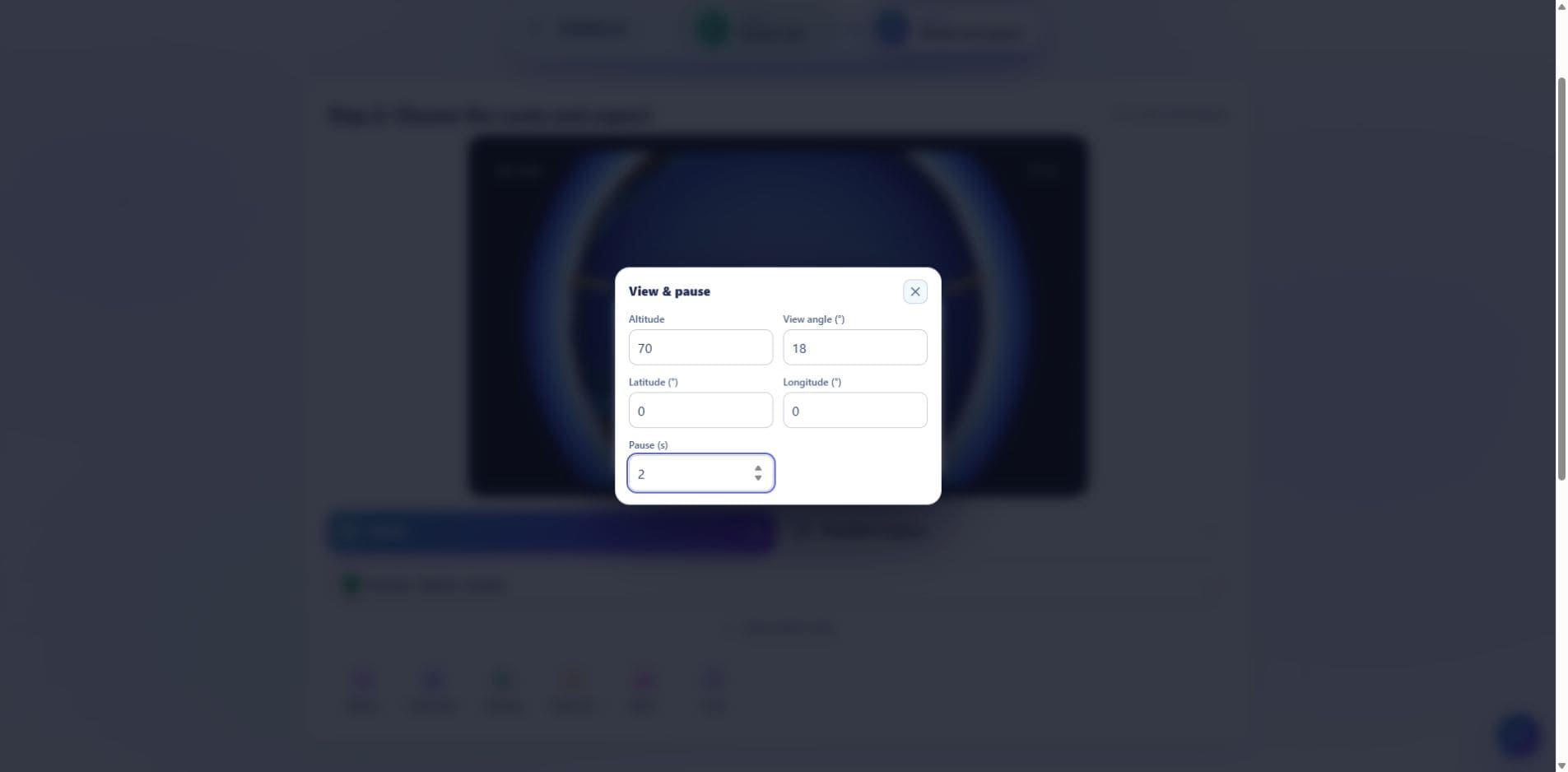
Open the stop-settings screenshot at full size to read the fields.
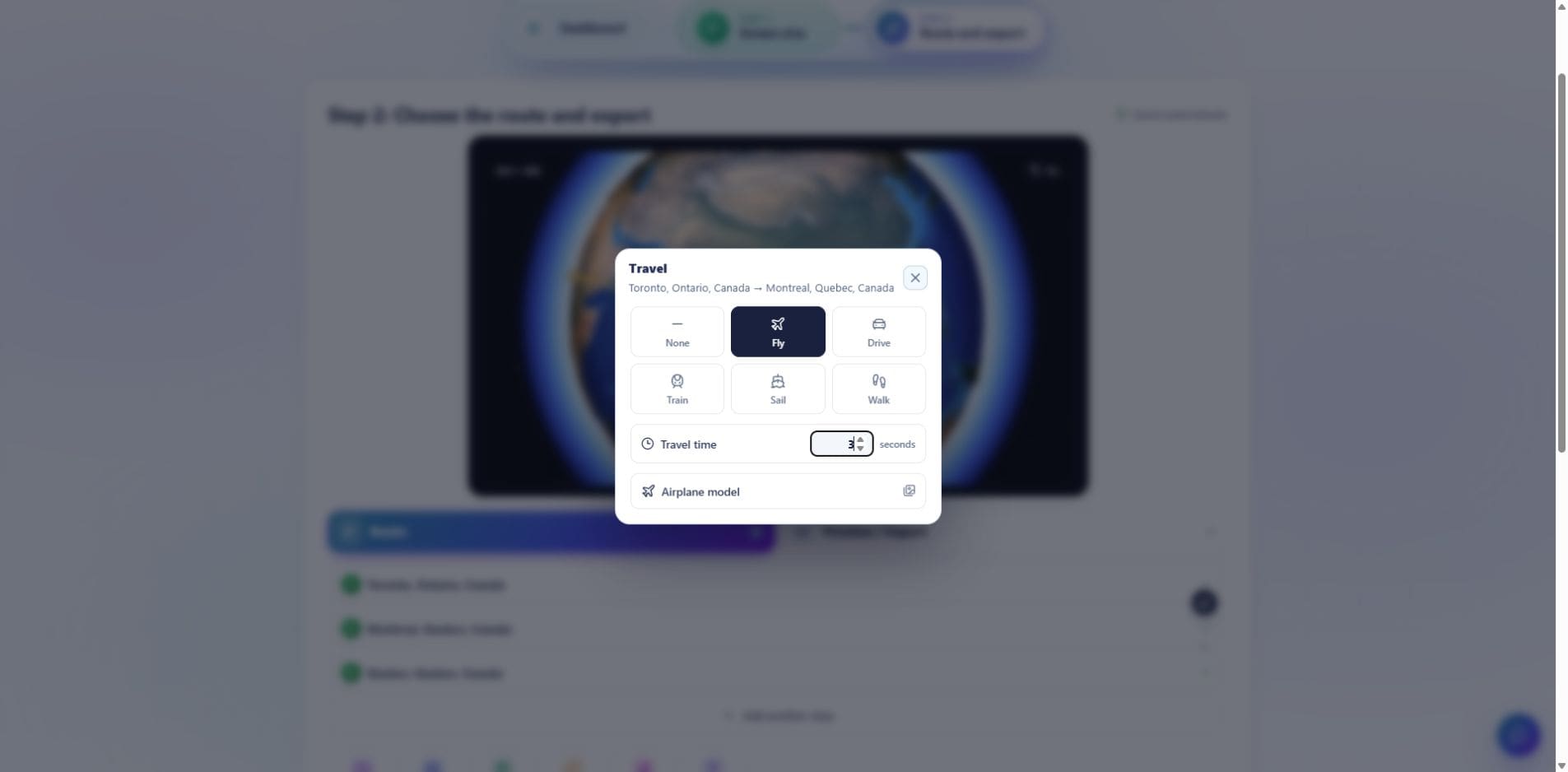
Open the travel-settings screenshot at full size.
Use two seconds of pause at each stop for the bare route plan. Choose None in Opening and ending, turn off Map infill & border highlights for this plain route, and retain Original styling and the route line. The numbered local example uses smaller labels so Montreal and Quebec City remain distinguishable. Watch the last frame as well as the opening: a dramatic horizon is less useful if it hides the route.
In the website, a map label uses attached media. Adding a photograph or clip can reserve extra reveal and display time; it is not equivalent to a marker-only local rendering. Treat the twelve-second table as a bare route budget and read the website’s updated duration after attaching content. Increase pauses when captions or pictures need more time.
Step 6 of 7
Preview, revise and export the current version
- Use Generate preview after the route and settings are ready.
- Check the selected places, travel order, visible path, label spacing and stop pauses.
- Correct one issue at a time, then generate a new preview for the changed version.
- Read the export settings and access requirements for your account before using Export video.
- When complete, use Download video and play the downloaded file from start to finish.
The local example is a 720p rendering, not a statement that every account or free export offers that resolution. Screen shape, quality, frame rate and access are separate decisions. A preview that omits final media is useful for checking geography, but the final file still needs its own review.
Step 7 of 7
Check the result before putting it in another video
For adding trip photographs and story chapters, continue with the travel-video guide. For alternative production methods, use the map-animation methods comparison.
Finish line
Route complete: 7 steps
Need to check something again? Jump straight back to any stop.
Helpful answers
Frequently asked questions
How do I make a route animation easy to follow?
Use a small number of stops in a clear order, allow time to recognize each place, and review label spacing and the last frame as well as the opening.
Does an animated line between cities show the real road or flight?
Not necessarily. The sample uses illustrative air arcs. A specific road, trail or traveled path needs its own checked geometry.
How long is the three-stop example?
The local sample is twelve seconds: three two-second pauses and two three-second journeys, without separate opening, ending or media scenes.
Why can my website project take longer than the sample?
Opening/ending animations and attached media can add reveal or display time. Read the updated project duration and review the final export instead of assuming the bare-route budget still applies.