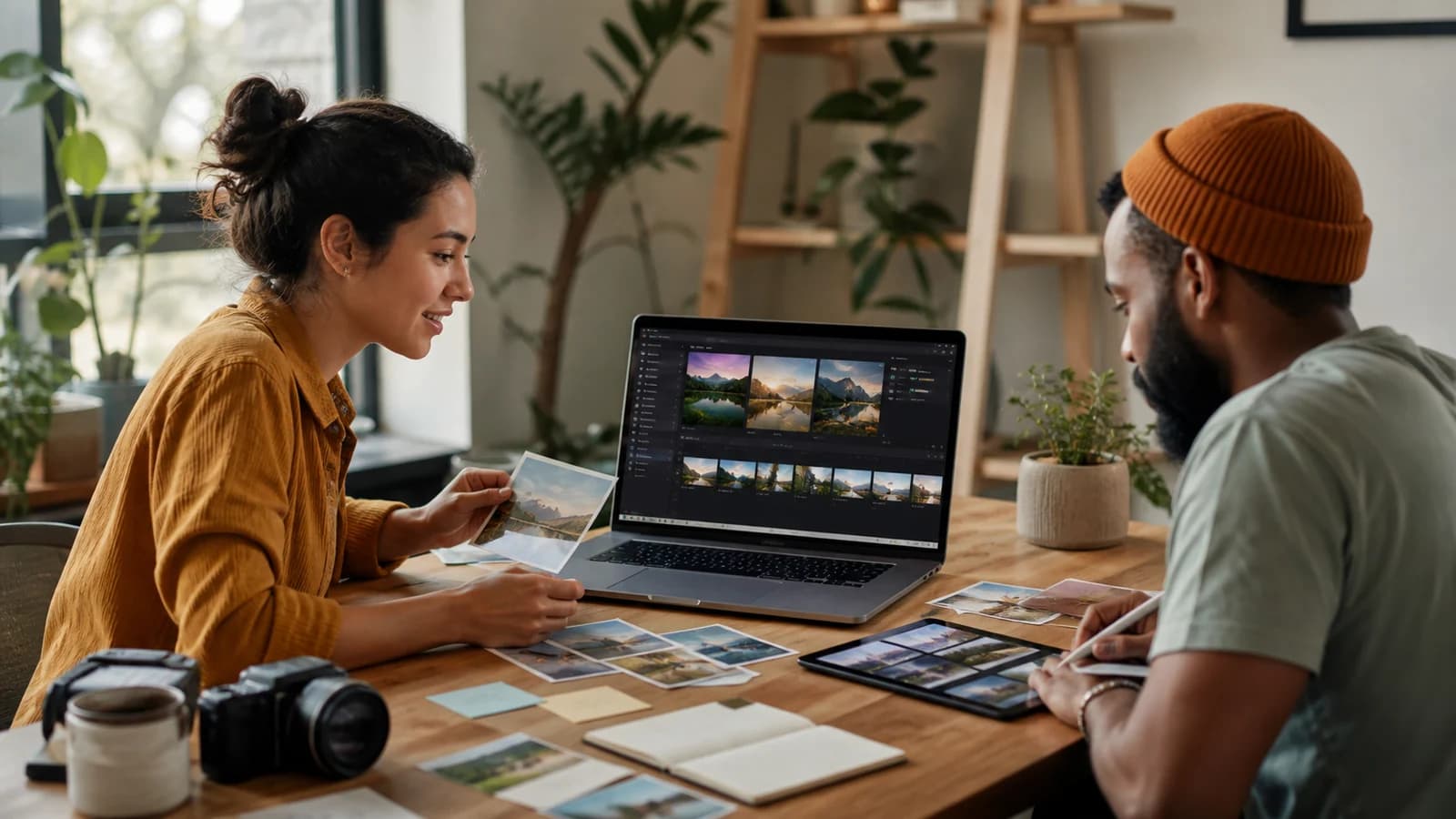
A photo-video project often begins with too much material: phone bursts, screenshots, edited copies, downloads from family chats, and several versions of the same picture. Editing becomes much easier when you organize that library before building scenes. The goal is not to erase memories. It is to protect the originals, identify the best copy, and create a smaller working set that you can understand at a glance.
Use a copy of the collection for sorting. Keep the original folders untouched until the finished video and backup have been checked. That single habit prevents an aggressive cleanup tool or rushed decision from becoming permanent data loss.
Step 1 of 6
Create a safe working copy first
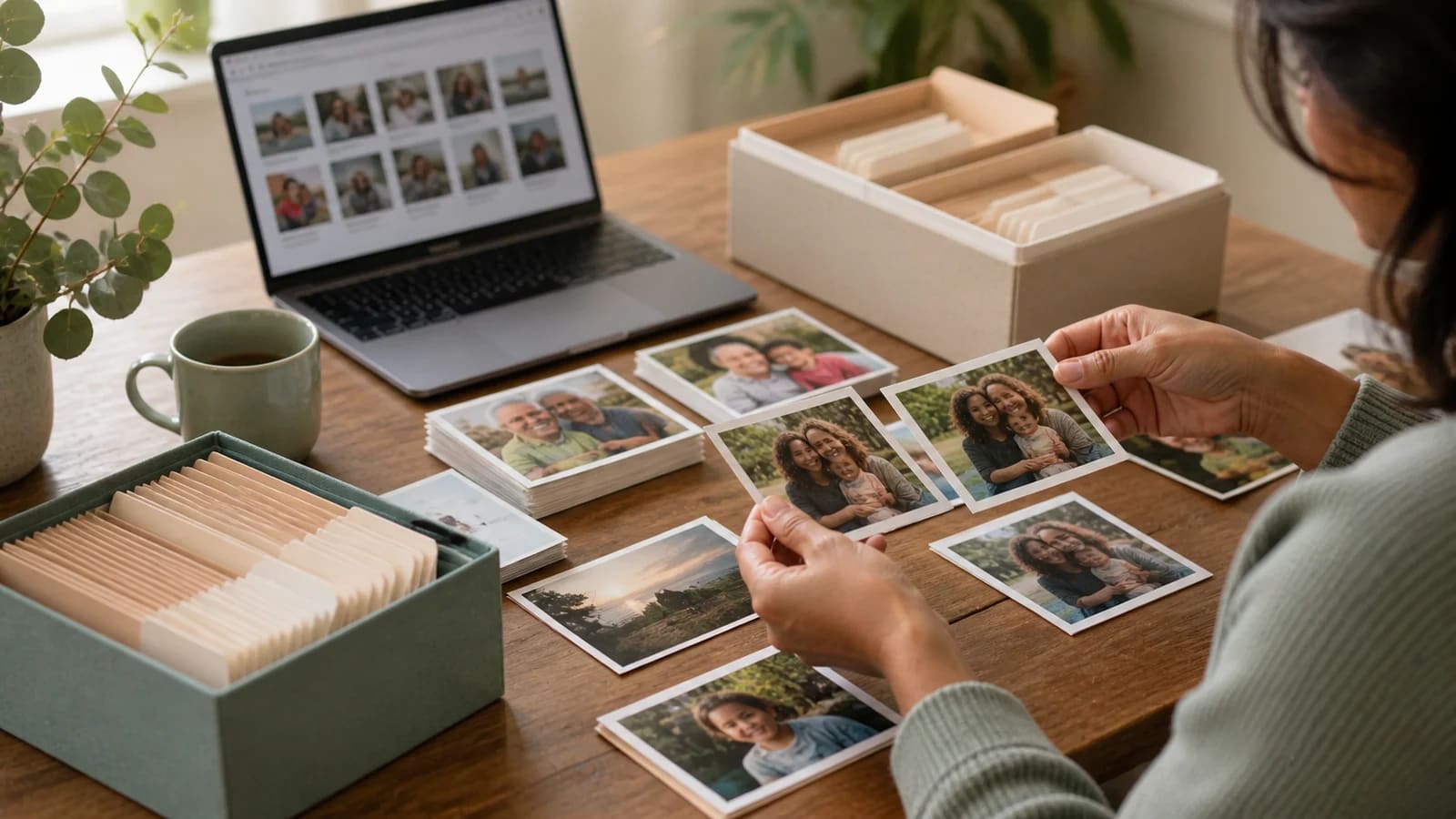
Gather files from phones, cloud folders, cameras, messaging apps, and contributors into one project folder. Copy them; do not move the only originals. If someone sent a smaller chat version and a full-resolution version, keep both until you verify which is better.
- Create an untouched Originals folder and copy every source into it.
- Create a Working Selection folder beside it.
- Make a second backup on another drive or trusted storage service.
- Do all renaming, rotating, cropping, and duplicate removal inside the working copy.
A duplicate-cleaning app can help find candidates, but it cannot know which expression, crop, or handwritten note matters to your family. Treat automatic matches as suggestions. Review every deletion group yourself.
Step 2 of 6
Sort by story before sorting by filename
Decide how the finished video will move. For a birthday, folders might be Childhood, School, Friends, Family, Travel, and Today. A memorial could use Early Life, Work, Community, Family, Favorite Places, and Legacy. A travel project may be easier to sort by city or day.
When place is the organizing idea, follow the method in How to Organize Travel Photos by Location. The same location-first approach works for a family history or relationship journey even when the files came from many people.
Step 3 of 6
Find exact duplicates and near-duplicates
Exact duplicates contain the same image data even when their filenames differ. Near-duplicates may be resized, cropped, color-adjusted, or captured a fraction of a second apart. File size, dimensions, and visual comparison help distinguish them.
| Duplicate type | What it looks like | What to keep |
|---|---|---|
| Exact copy | Same pixels with a different filename or folder | One verified copy plus backups outside the working folder |
| Resized copy | Same image but fewer pixels or stronger compression | The largest clear version unless the smaller file is the only edited version you need |
| Burst sequence | Several frames taken seconds apart | The sharpest expression or action, with one alternate if it tells a different beat |
| Edited variation | Crop, filter, repair, or black-and-white version | The original and the best intentional edit |
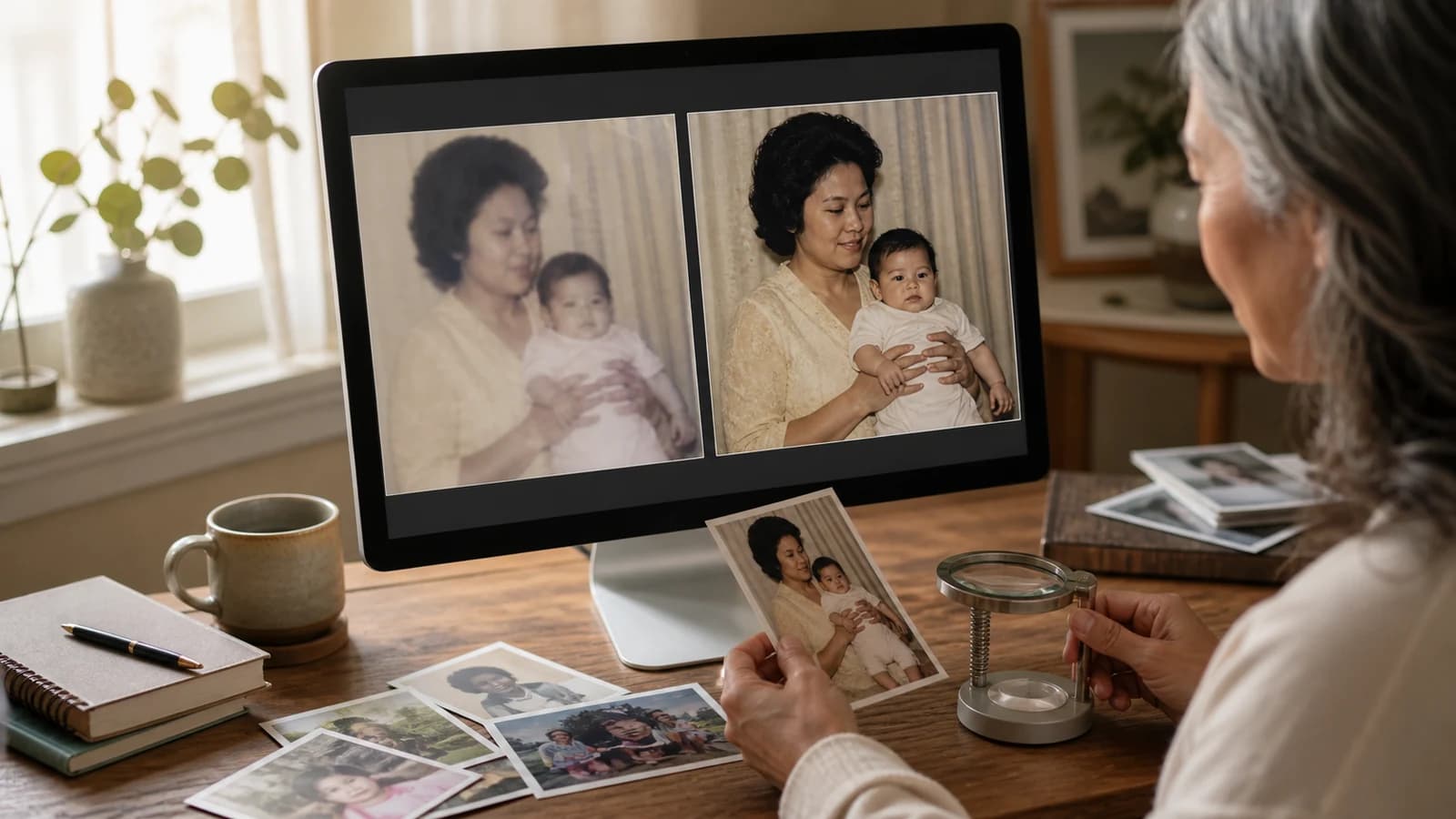
Zoom in on faces and important details. The highest-resolution file is not always the best photograph if it is blurry, badly timed, or missing someone important. Technical quality and story value need separate decisions.
Step 4 of 6
Use a simple keep, maybe, and archive pass
The first pass should be fast. Keep obvious favorites, archive obvious technical failures, and place uncertain items in Maybe. On the second pass, compare only the Maybe group against the story outline. This avoids making a hundred difficult decisions in a row.
Step 5 of 6
Rename the selected photos so the order is visible
Use short names that sort naturally, such as 01-childhood-home, 02-first-school, and 03-family-trip. Add a person or place when it will help later. Avoid writing the whole caption into the filename. Keep the descriptive caption in your project notes instead.
If several contributors supplied files, preserve their names in a separate source column or note. That makes it easier to confirm permission, request a better copy, or thank the contributor later. The viewer does not need to see this administrative information.
Step 6 of 6
Build a contact sheet before the first edit
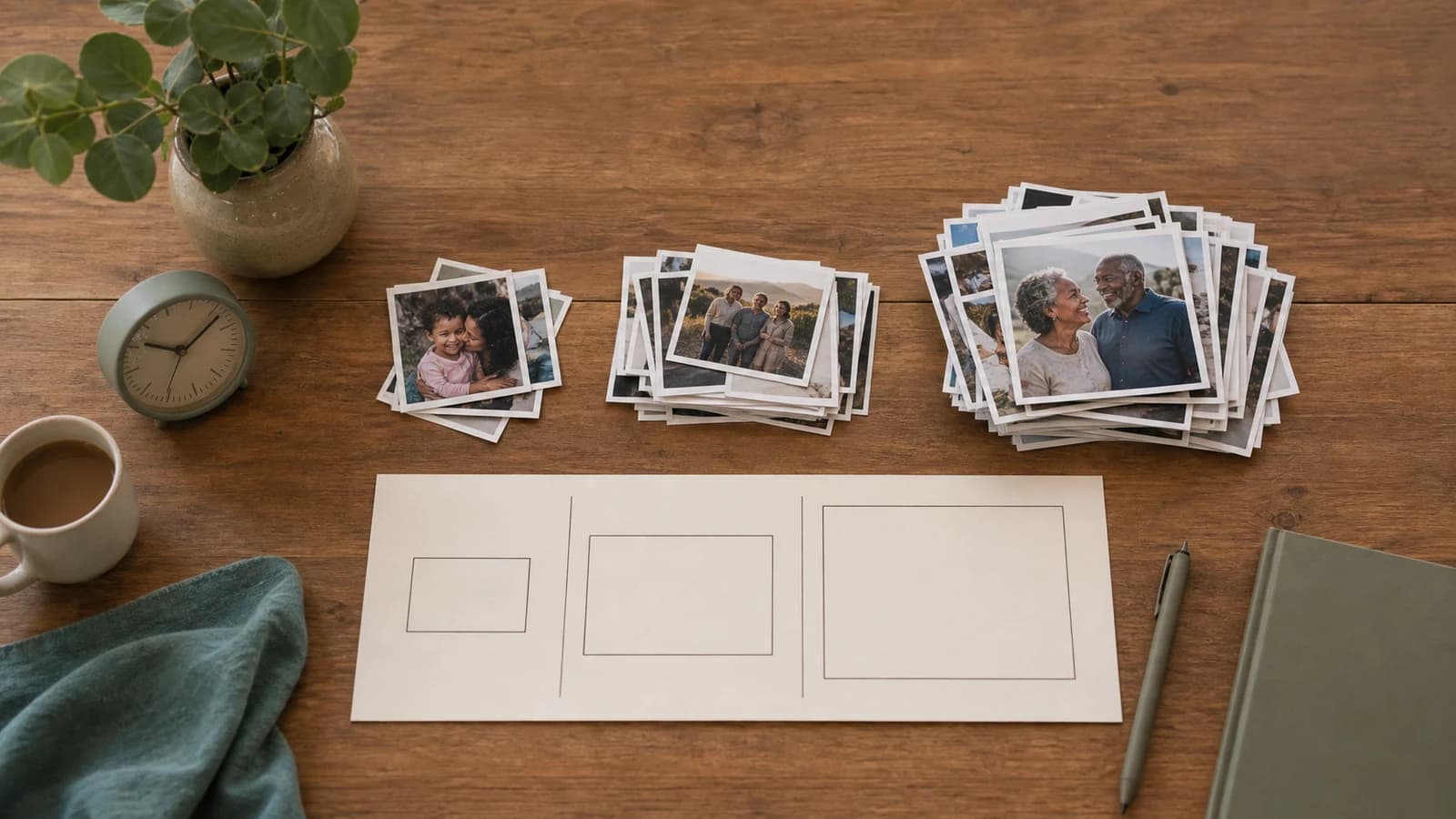
A contact sheet or thumbnail grid makes repetition obvious. Place the selected photos in story order and scan for long stretches with the same pose, person, or setting. Replace repeated images with a detail, map, message, or short clip that adds new information.
Aim for a working selection slightly larger than the final count. Try ten to fifteen percent extra as a starting point, then adjust for missing scenes and near-duplicates. A huge backup pile encourages constant second-guessing, while no backups make it hard to repair an awkward transition.
Finish line
Route complete: 6 steps
Need to check something again? Jump straight back to any stop.
Put the plan into practice
A clean working library makes every later decision faster. Preserve the originals, review automatic duplicate suggestions, and choose the version that best carries the story rather than the version with the most complicated filename.
Helpful answers
Frequently asked questions
Should I delete duplicate photos before making the video?
Remove duplicates from the working selection, but keep the original collection and a separate backup until the video is finished and verified.
How do I choose between two similar photos?
Compare sharpness, expression, composition, resolution, and story value. Keep both only when they communicate different moments.
Can duplicate-finder software safely choose for me?
Use it to identify possible groups, not to make final decisions. Review every proposed deletion, especially edited versions and family archives.
What is the best folder structure for a slideshow?
Use the same chapters as the story: time periods, locations, relationships, or themes. Keep the first level broad and add subfolders only when needed.
Should I rename every original photo?
No. Rename the working selection if it helps ordering. Leave the untouched original folders intact so dates, filenames, and source context remain available.